Can customers use your website without a mouse? A simple keyboard check
October 11, 2026
How to write clear page titles and search descriptions
October 12, 2026A customer clicks “View our services” and reaches a missing page. The button still looks right, but the route has stopped. A short link check can help you find these dead ends before you send more visitors to them.
Start with the pages that matter most to your business. You do not need to review every old blog post in one sitting. The aim is to build a clear repair list and check that each fix takes the visitor somewhere useful.
1. Follow a real customer journey
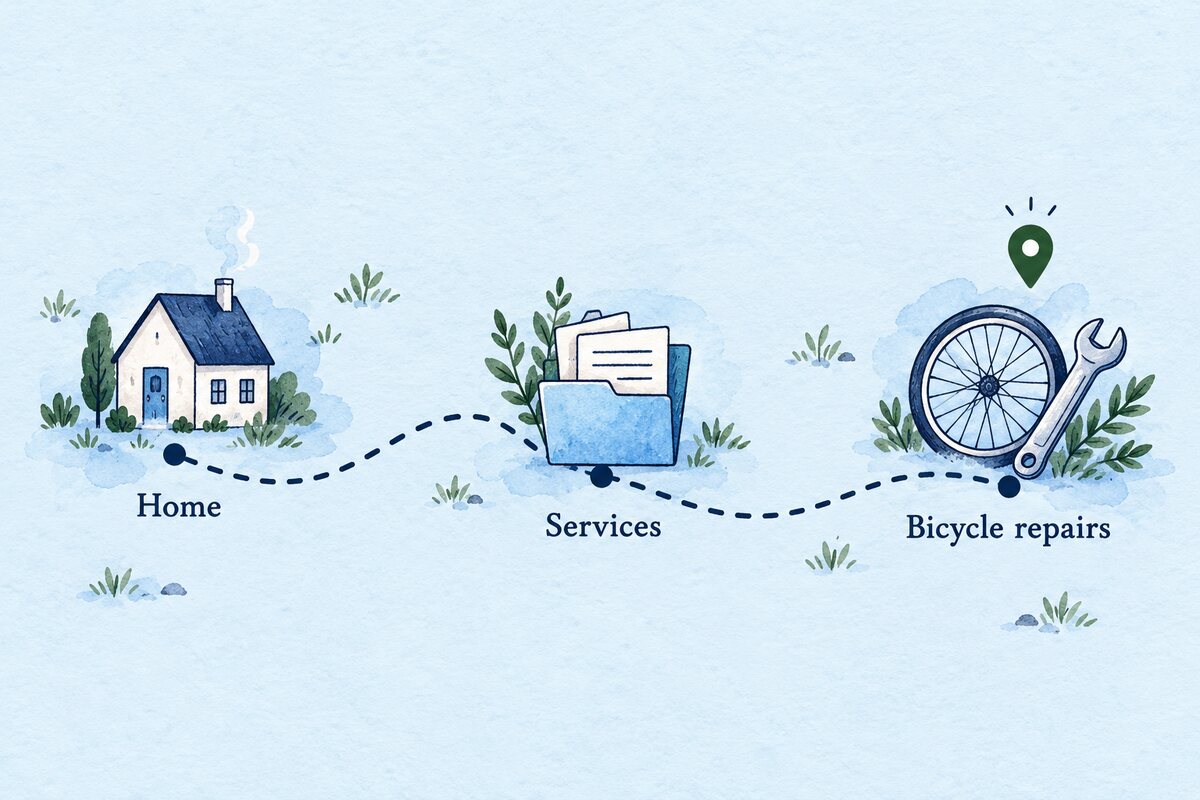
Open your website while signed out. Start at the homepage and follow the route to one service, its enquiry page and any supporting download. Try the main menu and footer too. On a phone, check the mobile menu separately.
For each link, ask two questions: does it open, and is the destination what the label promised? A link to an old brochure can be unhelpful even when the file opens successfully. Check the date and content of downloads, not just whether they load.
Keep a simple record with four columns: the page containing the link, the link text, the destination address and what went wrong. Copy the full addresses so your editor can find the exact link.
2. Separate a missing page from other problems
A “404 Not Found” response means the server cannot find the requested resource. It does not, by itself, tell you whether the absence is temporary or permanent, as MDN’s explanation of 404 responses makes clear.
Record what you actually see. “Page not found”, a sign-in screen, a blank page and a browser connection warning are different symptoms. Do not label all of them as the same fault. If a link works only while you are signed in, check whether it points to an editor preview or a private page.
For example, write: “The brochure link on our services page opens last year’s PDF.” That is more useful than “downloads broken”.
3. Choose a repair that matches the destination
If the address in your own link contains a typo, correct it. If it points to an old download, replace it with the approved current version. Open the replacement yourself before saving the change.
When a page has permanently moved, ask your web developer to redirect the old address to its new home and update your internal links to use the new address. Google’s redirect guidance distinguishes permanent moves from temporary changes; a permanent server-side redirect is appropriate for a lasting move.
If the content has been removed and there is no similar replacement, a proper 404 or 410 response is appropriate. Google’s guidance on missing pages explains this distinction. Avoid sending every missing address to the homepage: decide what the visitor was trying to reach first.
For a broken link to another organisation’s website, find and verify its current page, then update your link. If no suitable page remains, remove the link and revise any sentence that depends on it.
4. Make the missing-page message useful
A visitor can still arrive through an old bookmark or a link you do not control. Check your site’s missing-page screen with your developer. It should explain that the page could not be found and offer useful routes, such as the homepage, services or contact page.
Ask the developer to confirm that the server still returns the correct error status. A page that says “not found” while reporting success can create a “soft 404”, which Google describes in its missing-page guidance.
5. Repeat the original journey after each fix
Return to the page where you found the problem and click the actual link again. Test while signed out and check that any download is the intended file. If a redirect was added, test the old address as well as the new one.
Record who made the repair and when you checked it. Add a small link review after changing page addresses, replacing brochures or retiring services. For clearer labels along the same route, see our guide to headings and links on service pages.
Found a dead end you cannot explain? Contact Hobbit Web Design with the starting page, the link you clicked and what appeared.