

Do your website pages print clearly? A practical check
October 26, 2026
Do your website email links work for every customer?
October 27, 2026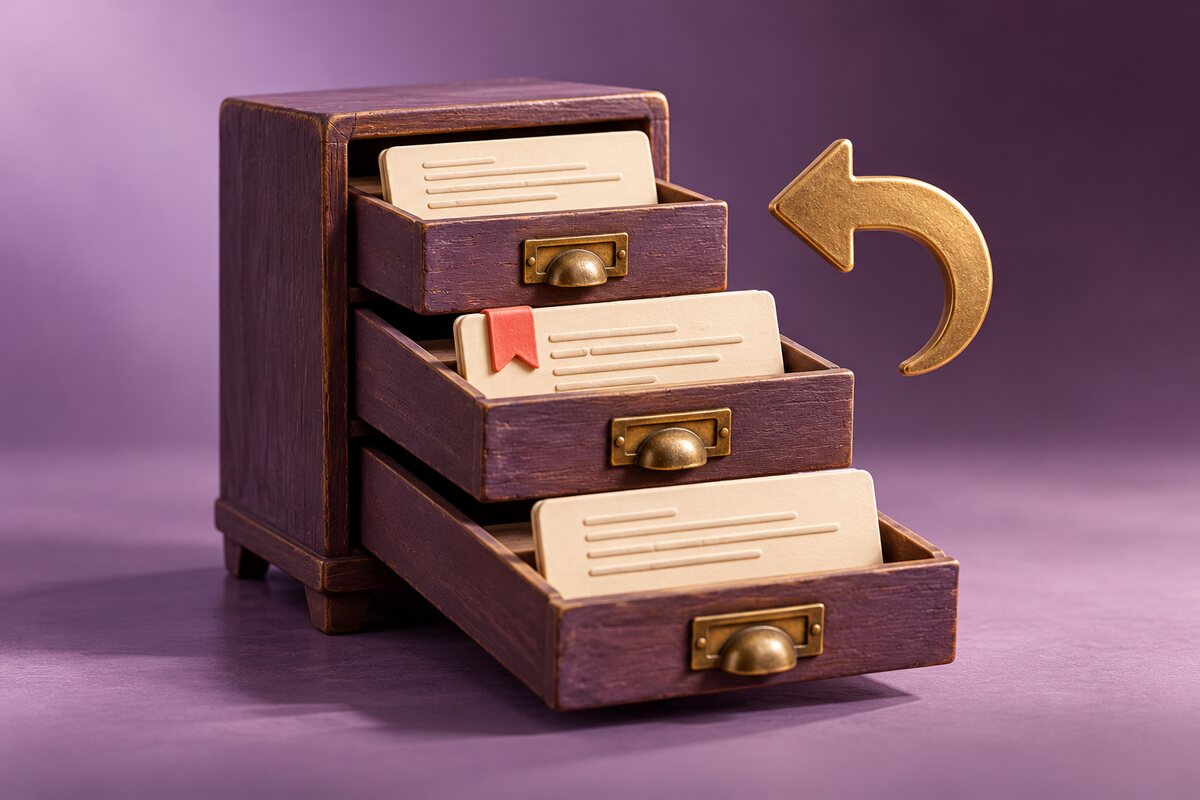
Have you removed a useful paragraph while updating a WordPress page? Before rewriting it from memory, check whether an earlier revision contains the wording you need. The important part is choosing what to recover without bringing back details that are now out of date.
This practical check is for a small-business owner who edits their own page copy. Arrange a quiet moment, let anyone else who edits the page know what you are doing, and start with a clear description of what is missing.
Record what needs to come back
Write down the page address, the missing section and roughly when it was last correct. For example: “The appointment page has lost its parking instructions; they were there before Monday’s update.” This gives you something specific to look for.
Keep a copy of the current wording before making changes. Note any recent updates that must stay, such as a new telephone number, opening hours or service description. If a colleague made those changes, check with them before replacing anything.
Find the available WordPress revisions
WordPress’s revisions documentation explains how saved versions let you compare earlier changes. Open the page or post in the editor, open its Settings sidebar, select the Page or Post tab and look for Revisions. The interface varies with the WordPress version, so your screen may differ from an online screenshot.
Choose a saved version and inspect the changes. Use the date and the comparison to locate the missing wording, rather than assuming the oldest or newest entry is right. WordPress can limit the number of revisions it retains, so an earlier version may no longer be available.
If you cannot see revisions, stop and ask your website maintainer what is available for that page. Give them the page address and your notes. Do not change site configuration simply to make a control appear.
Compare the whole change before restoring
Imagine that Tuesday’s edit removed the parking paragraph, but also corrected your contact number. Restoring Monday’s complete version could recover the paragraph while bringing back the old number. Your aim is a correct page, not merely an earlier page.
- Read the section before and after the missing text so the wording still fits.
- Compare dates, prices, contact details and service information with your current records.
- Check that linked pages still exist and are the intended destinations.
- Identify any newer corrections that need to remain.
If only a short passage is missing, consider copying that wording into the current page rather than restoring the whole earlier version. If you do choose a full restore, review everything it changes first. WordPress provides a Restore control for a selected revision; use it only when that version is the one you intend to recover.
Check the result as a customer
Preview the proposed page before saving or publishing your correction where the editor allows it. After the change, open the public address in a signed-out browser window and check it again. Read the recovered text on a phone as well as a larger screen.
Follow each link in the repaired section. If it describes a customer action, such as arranging a visit, follow the route far enough to confirm that the instructions still make sense. Our guide to testing a website contact form can help when that route ends in an enquiry.
Leave a short record for next time
Record what you recovered, what newer details you kept and when you checked the live page. One clear sentence can prevent another editor from undoing the correction later.
Treat revision recovery as one part of your editing routine. For wider recovery planning, including a site that you cannot open, use our separate WordPress backup checklist and confirm the recovery arrangements with your maintainer.
Need help understanding a missing section or an unexpected page change? Contact Hobbit Web Design with the page address and a short explanation of what changed.