Could you restore your website? A practical WordPress backup check
October 9, 2026
Are your opening hours and visit details clear on your website?
October 10, 2026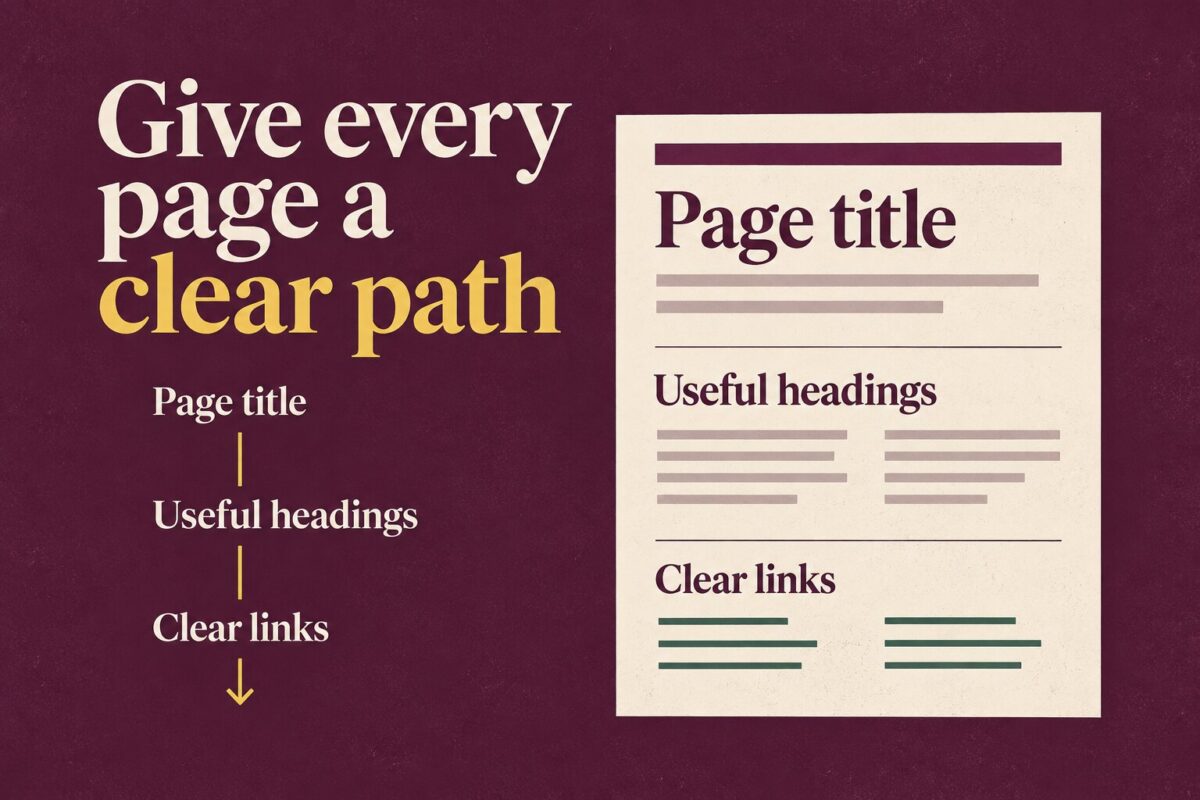
Open one of your service pages and read only its headings. Can you tell what the business offers, what the service includes and how to take the next step? If the answer is unclear, start with the words that guide readers through the page.
This is a focused editing exercise for a small-business website. Choose one page that matters to enquiries, such as your main service page. Keep a copy of its current wording so you can compare your changes.
1. Give the page a specific subject
A heading such as “Our solutions” leaves the reader to work out what you mean. A fictional gardener might use “Garden maintenance in Banbury” instead, provided that service and location are accurate. The second heading tells a prospective customer what the page covers.
Write down the question this page should answer. Then check that its main heading answers the same question. Avoid adding a town, service or promise simply because it sounds attractive; the page must describe what the business actually provides.
2. Turn the headings into a useful outline
Read the headings without the paragraphs below them. For the fictional gardening page, an outline might be “What a maintenance visit includes”, “Areas we cover”, “How to request a quote” and “Questions before booking”. Each heading gives its section a clear job.
Now place your existing paragraphs under that outline. Remove a heading if there is no useful content beneath it. If two sections answer the same question, consider combining them. Ask a colleague to read the outline and say what information they expect to find under each heading.
3. Check the heading levels, not just the font size
A large line of bold text may look like a heading without being marked as one in the page. Use the heading controls in your editor to give sections a structure. A common article pattern is a main H1 heading, H2 section headings and H3 subheadings within those sections. Check what your page template already supplies before adding another main heading.
The W3C guide to headings explains how heading structure can support navigation, including through assistive technology. It recommends nesting levels logically and avoiding skipped levels where possible. Choose a level for its place in the outline; ask your designer to adjust its appearance if needed.
4. Make each link explain its destination
Look for links labelled “Click here”, “More” or “Read more”. Replace vague wording where the destination can be named clearly. For example, “See our garden maintenance services” is more informative than “Learn more”. Use “Request a garden maintenance quote” only if the destination really starts that process.
W3C’s writing tips for accessibility recommend meaningful link text and clear, concise content. Keep the label short enough to read comfortably, but specific enough to explain what follows. Open each edited link and confirm that it leads to the intended page.
5. Review the whole page before saving the change
Read the revised page from top to bottom. Does each section answer its heading? Does the final invitation match what you want the visitor to do? Replace internal business language with the words a customer would use when asking for help.
Preview the page on a phone as well. Long headings may wrap awkwardly, so shorten them without removing their meaning. Our mobile homepage check offers a separate review of the wider phone experience.
Keep a brief change note: the page address, headings changed, links tested and date reviewed. This small exercise is one part of improving accessibility; it is not a complete accessibility audit. Repeat it on another important page once you are happy with the first.
Want to discuss clearer wording and structure for your business website? Contact Hobbit Web Design and send us the page you would like to improve.