Does your 404 page help customers find their way?
October 26, 2026
How to recover missing page text with WordPress revisions
October 26, 2026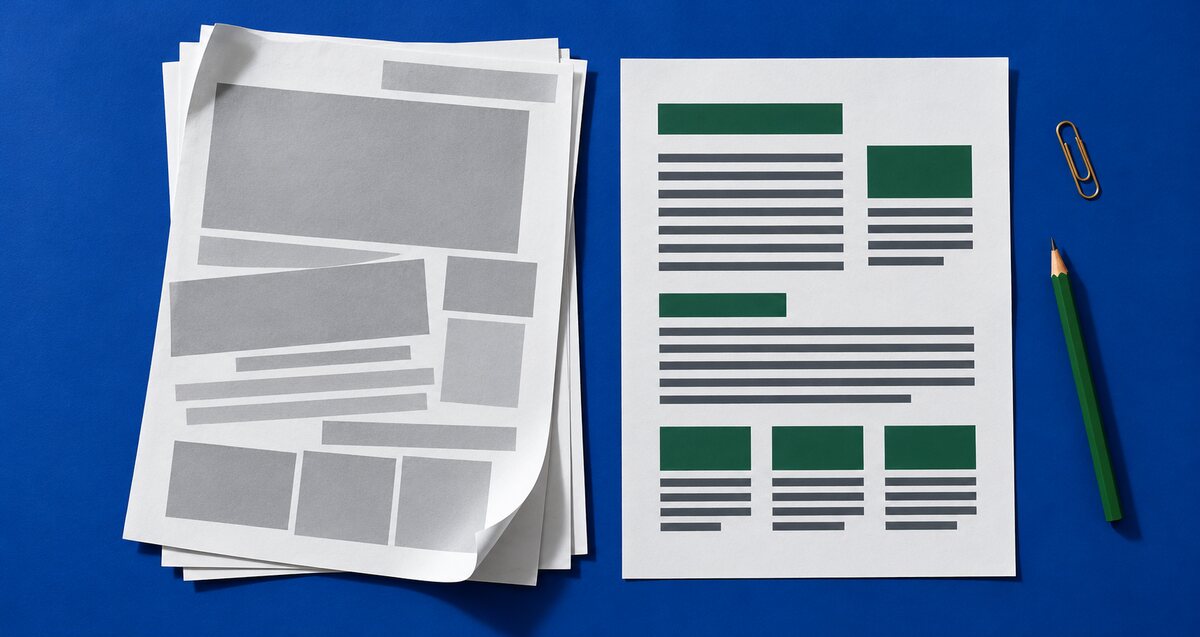
Could a customer print your visit instructions, service details or preparation checklist and still use them away from the screen? A page that looks clear in a browser can become several sheets of menus, cropped text and empty space when printed.
A quick print check helps you spot these problems before someone relies on the information. Start with one useful page, rather than trying to redesign the whole website.
Choose a page someone might keep
Pick information a customer may want beside them while doing something else: directions to your premises, a list of items to bring, care instructions or a guide to preparing for a visit. Think about the task the paper copy needs to support.
For example, printed appointment instructions should still explain where to go, what to bring and how to ask for help. A navigation menu and a large decorative banner are less useful on that sheet. Our appointment preparation checklist can help you decide which details matter.
Open print preview before using paper
Open the page in a signed-out browser window and use the browser’s Print command. Select A4 if that matches the paper your customers are likely to use. Start with the normal scale and margins so you see the result without special adjustments.
Read every preview page. Check the first and last lines of each section, not just the opening page. If your browser offers a PDF destination, save a test copy and open it separately. This is useful for checking the output without printing every trial.
- Is the main heading visible, with the business name or another clear source?
- Does every instruction appear in the right order?
- Are the right edges of tables, images and paragraphs cut off?
- Do large blank areas or repeated menus create unnecessary pages?
- Can you read the text at a comfortable size without shrinking the whole page?
Check what the screen was doing for you
Paper cannot open a menu, play a video or follow a button. Check whether information hidden inside expandable sections appears in the printout. Do not assume the browser will include it just because it exists on the page.
Read linked instructions carefully. “Click here for directions” is not enough on paper. Where the destination matters, provide a useful written address or a short, readable website address alongside the link. Keep telephone numbers and essential contact details as readable text.
Check a black-and-white preview if available, or make one paper test. Labels should still make sense when colours are lost. Essential information should not disappear when background graphics are turned off. These are practical checks, not a full accessibility assessment.
Give your website maintainer a precise fix list
Record the page address, browser, paper size and the problem. A note such as “the final column is missing on page two at A4 portrait” gives your maintainer more to work with than “printing looks wrong”. Include the saved test PDF where useful.
MDN’s printing guidance explains that a website can use separate CSS styles for print output. These can change the layout for paper or PDF without using the same presentation as the screen. The CSS @page rule can also control aspects such as printed-page margins and orientation.
Ask your maintainer to assess the smallest useful change: removing repeated navigation from print output, keeping essential contact information, making wide content fit or improving page breaks. Avoid solving every problem by reducing the text size. If a table is the main difficulty, also review our guide to readable website tables.
Retest the complete customer task
After changes, repeat the same preview check and try a second browser if you can. Confirm that the normal screen page still works. For an important instruction sheet, make one final paper copy and follow it from beginning to end.
Keep dated information, such as opening hours, under review. A printed sheet can outlive the page it came from, so include a clear route to current details where that matters. Repeat the check after a major content or layout change.
Want to discuss a page that is difficult to use or print? Contact Hobbit Web Design with the page address and a brief description of what goes wrong.