Are your opening hours and visit details clear on your website?
October 10, 2026
Can customers use your website without a mouse? A simple keyboard check
October 11, 2026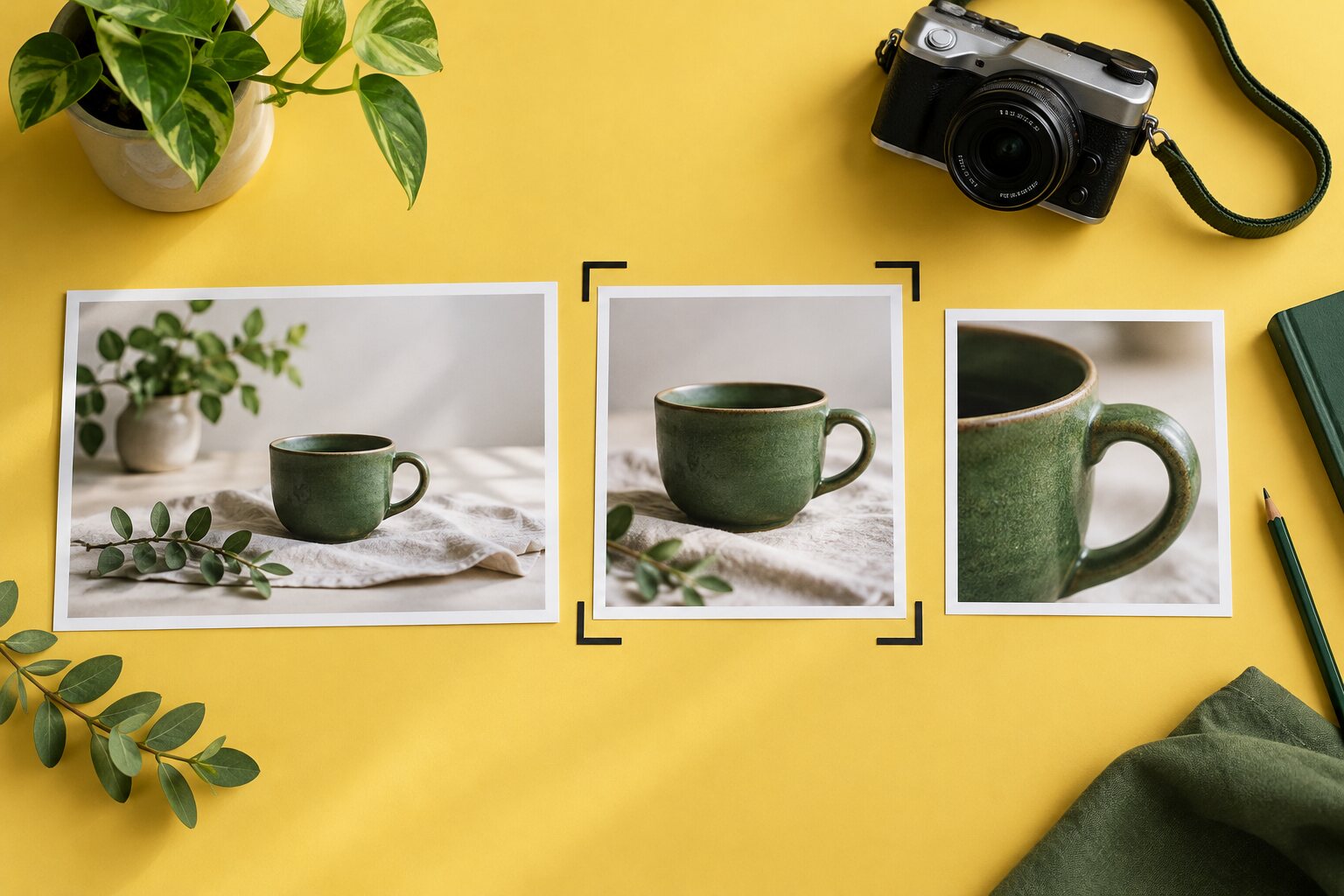
A new photo can make a service page more useful. It can also arrive straight from a camera with far more detail than the page needs. Before uploading your next batch, give each image a clear job and prepare a separate web copy.
This practical workflow suits a small business adding team, premises, product or project photos. Start with one important page, so you can check the result before changing the rest of the site.
1. Choose the photo that answers a customer question
Decide what the visitor needs to see. A product page might need a clear view of a handle or finish. A visit page might need the actual customer entrance. A service page might benefit from a real example of completed work.
Keep the strongest useful image and remove near-duplicates from your selection. Check that the picture is yours to use or is covered by suitable permission. Keep the original file and its permission record together; edit a copy for the website.
2. Check the shape before the size
Look at the space the photo will fill. A wide banner, square card and portrait team photo need different crops. Use your editor’s preview to see whether the important subject stays visible when the page becomes narrow.
For example, a wide photograph of a workshop may look good on a desktop but lose the person at the edge in a phone crop. Move the crop or choose a better source photo. Do not stretch the image to force it into the space.
3. Separate pixel dimensions from file size
Pixel dimensions describe the image’s width and height. File size, usually shown in KB or MB, describes how much data the file contains. Shrinking a picture visually on a page does not by itself prove that the browser downloads a smaller file.
Ask whoever maintains your website which dimensions suit that image position and whether the site supplies different versions for different screens. High-density displays also affect the detail needed. Google’s image performance guide explains how correctly sized images and responsive image choices can reduce unnecessary downloads.
Keep a short note of the agreed dimensions for each common placement. That gives the next person uploading a photo a repeatable starting point instead of a guess.
4. Export, compare and compress
Export a web copy using a format your website supports. JPEG is a useful option for photographs; WebP and AVIF can offer more efficient compression. PNG is useful where precise reproduction or transparency matters. See MDN’s image format guide for the differences.
Compare the exported file with the original at the size visitors will see it. Look closely at faces, product edges and fine detail. If compression makes the subject look smeared or blocky, increase the quality and compare again. There is no single quality setting that suits every photo.
Write down the exported file size. Use it to compare your own versions, rather than chasing a universal target that ignores the image’s purpose. Keep the smallest version that still does its job clearly.
5. Add a useful filename and text alternative
Give the file a name you will recognise later, such as workshop-customer-entrance.jpg. Add a clear media title in your content editor so your team can find it again.
For an informative image, write alternative text that conveys the useful information in its context. A photo showing an entrance could say, “Customer entrance beside the green gate on Mill Lane”, if that is accurate. Pure decoration needs an empty text alternative instead. The W3C’s accessibility writing guidance explains this distinction. Avoid filling the field with search phrases.
6. Check the published page
Open the page on a phone and a larger screen after saving. Check the crop, sharpness, layout and nearby text. Confirm that the intended photo appears and that an old version is not still showing. If your editor has separate desktop and mobile settings, inspect both.
For a wider review, use our practical mobile homepage check. Record the page, image name and date checked. Keep the original safely stored so future changes do not depend on an already compressed copy.
Want to discuss the images on your website? Contact Hobbit Web Design with the page you would like to improve.