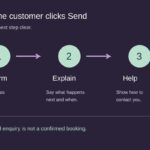
Does your website tell customers what happens after they click Send?
October 23, 2026
Can customers pause and use your homepage slideshow?
October 25, 2026
Does your website tell a customer whether you can reach their address? “Local service” may sound friendly, but it leaves an important question unanswered. A clear service-area section should explain where you work, what is available there and what to do if someone is near the boundary.
This practical check is for businesses that visit customers, deliver goods or combine local visits with remote work. Start with the service you actually offer today.
Describe your service area in words customers recognise
Write a short sentence naming the towns, districts or postcode areas you regularly cover. Put it near the service description and the enquiry link, where a customer can use it before filling in a form. If the list is long, show a short summary and link to a fuller coverage page.
For example, a fictional repair business might write: “We visit customers in Northbridge and the surrounding villages listed below. If your village is not listed, send your postcode so we can check availability.” Use your own verified locations; this is an example, not a claim about our coverage.
Ask someone who does not know your business to find their area. If they must guess what “nearby” means, make the wording more specific.
Separate visits, deliveries and remote help
Different services may have different boundaries. A shop might deliver locally but post selected products further afield. A consultant might offer online appointments more widely than in-person visits. Give each option its own short explanation instead of combining them under “nationwide”.
- Say which service the area list applies to.
- Explain whether customers can visit your premises, and whether an appointment is needed.
- State any genuine limits, such as particular delivery days or services available only in selected areas.
- Explain how customers can check charges or availability before committing.
Do not promise a visit, delivery time or fixed travel charge unless your business can support that promise. If it depends on the job, say what you need to confirm it.
Use a map as support, with a readable area list
A map can help someone understand your coverage at a glance. It should not be the only place where essential coverage information appears. Keep the place names and any exclusions in ordinary page text so customers can read them without interpreting colours or zooming into an image.
W3C’s guidance on complex images includes maps and explains how to provide their essential information in text. For a coverage map, pair a short image description with a visible explanation of the areas it represents. Make sure the map and the written list agree.
On a phone, check that the text remains readable and that a map does not push the enquiry route out of reach. Our mobile homepage checklist gives you a useful starting point.
Give people near the boundary a clear next step
Make uncertainty easy to resolve. A short invitation such as “Not sure whether we cover your area? Tell us your postcode and the service you need” is more useful than leaving the visitor to interpret a vague radius.
Ask only for the location detail needed at that stage. A full address may be unnecessary for an initial coverage question. Explain that an enquiry is a request for confirmation if availability still needs checking. Do not make a customer complete a long booking process before revealing that their location is outside your area.
Check the other places customers see your coverage
Compare your website with the business listings you maintain. Google’s service-area guidance distinguishes businesses that travel to customers from those that also receive customers at their premises. Check the guidance against your actual business model when reviewing your profile; a website area list does not update that profile automatically.
Then review your contact page, delivery information and any older service pages. Remove conflicting statements. For businesses with premises, check the opening hours and visit details as well.
A five-minute final check
Choose one address inside your area, one near its edge and one outside it. Use the website as a new customer would. For each, can you tell which service is available and what to do next? Note any uncertainty, correct the wording and repeat the check after a change to your coverage.
If your website makes a simple coverage question difficult to answer, tell Hobbit Web Design about your website. Include the page link and the information customers struggle to find.