Are old offers still live on your website? A content tidy-up
October 18, 2026
Help customers prepare for an appointment: a website checklist
October 21, 2026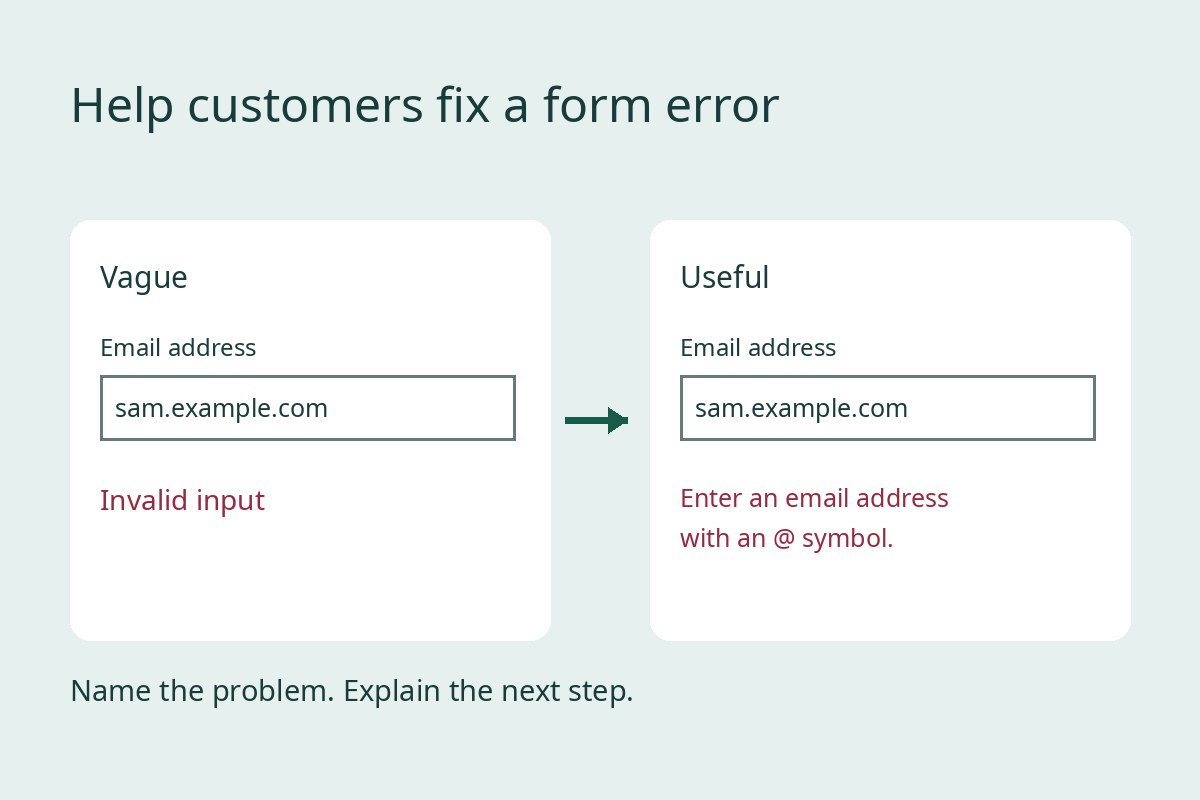
A customer misses a required field, presses Send and sees “Invalid input”. What should they change? A form error should help them recover, without making them guess or start again.
This review focuses on the messages people see when something goes wrong. Use it alongside our end-to-end contact form test, which checks whether an enquiry reaches its destination.
Start with one ordinary mistake
Choose your main enquiry form. Tell the colleague who receives enquiries that you are testing it, and use invented test details rather than customer information. Do not test by making real purchases or bookings.
Leave one required field empty and try to continue. Write down the exact message and where it appears. Repeat with an email address missing its @ symbol. Test one mistake at a time so you can see which message belongs to which field.
Keep a short record: page address, device, field, test input, message shown and suggested change. A screenshot can help your website maintainer reproduce the problem, provided it contains no personal information.
Replace vague wording with a useful instruction
W3C’s form notification guidance recommends clear feedback that identifies the affected field and explains how to correct the error. A message beside the field can be combined with an error summary above the form.
For your own review, compare these examples:
- Missing name: replace “Required” with “Enter your name”.
- Missing email symbol: replace “Invalid input” with “Enter an email address with an @ symbol”.
- Unclear date format: state the format your form actually accepts and give a valid example.
Match the instruction to the real problem. Do not tell someone to add an @ symbol if their address already contains one. Ask your maintainer which messages come from the browser, the form tool or custom code before changing them.
Check the recovery, not just the warning
Correct the mistake and continue. Does the form now accept the entry? Are the other answers still there? Does the warning disappear when appropriate? Check on a phone as well as a larger screen.
Try the same task using the keyboard. Can you reach the affected field and continue? W3C describes linking summary errors to their fields and associating field messages with controls so assistive technology can identify the relationship. Ask your maintainer to check that behaviour; a red border alone does not explain the correction.
This short exercise can identify obvious problems. It is not a complete accessibility assessment.
Separate an entry error from a delivery failure
A customer cannot fix a server problem by rewriting their name. If you have seen a delivery failure, give your maintainer the time and page address so they can investigate. Do not deliberately disrupt the live site to create one.
Agree what the customer should see if sending fails. The wording should accurately describe what is known and offer a working alternative contact route. Avoid a success message that implies an enquiry was received when the system has reported a failure.
Retest after the change
Start with the most confusing message on your busiest form. After an edit, repeat the failed entry, correct it and send one clearly labelled test enquiry. Confirm the result with the receiving colleague, then record the date and outcome.
Keep the messages brief, specific and polite. If you would like to discuss a confusing form on your website, contact Hobbit Web Design with the page address and an example of the message.