Turn repeated customer questions into useful website answers
October 12, 2026
Are your website PDF downloads easy for customers to use?
October 16, 2026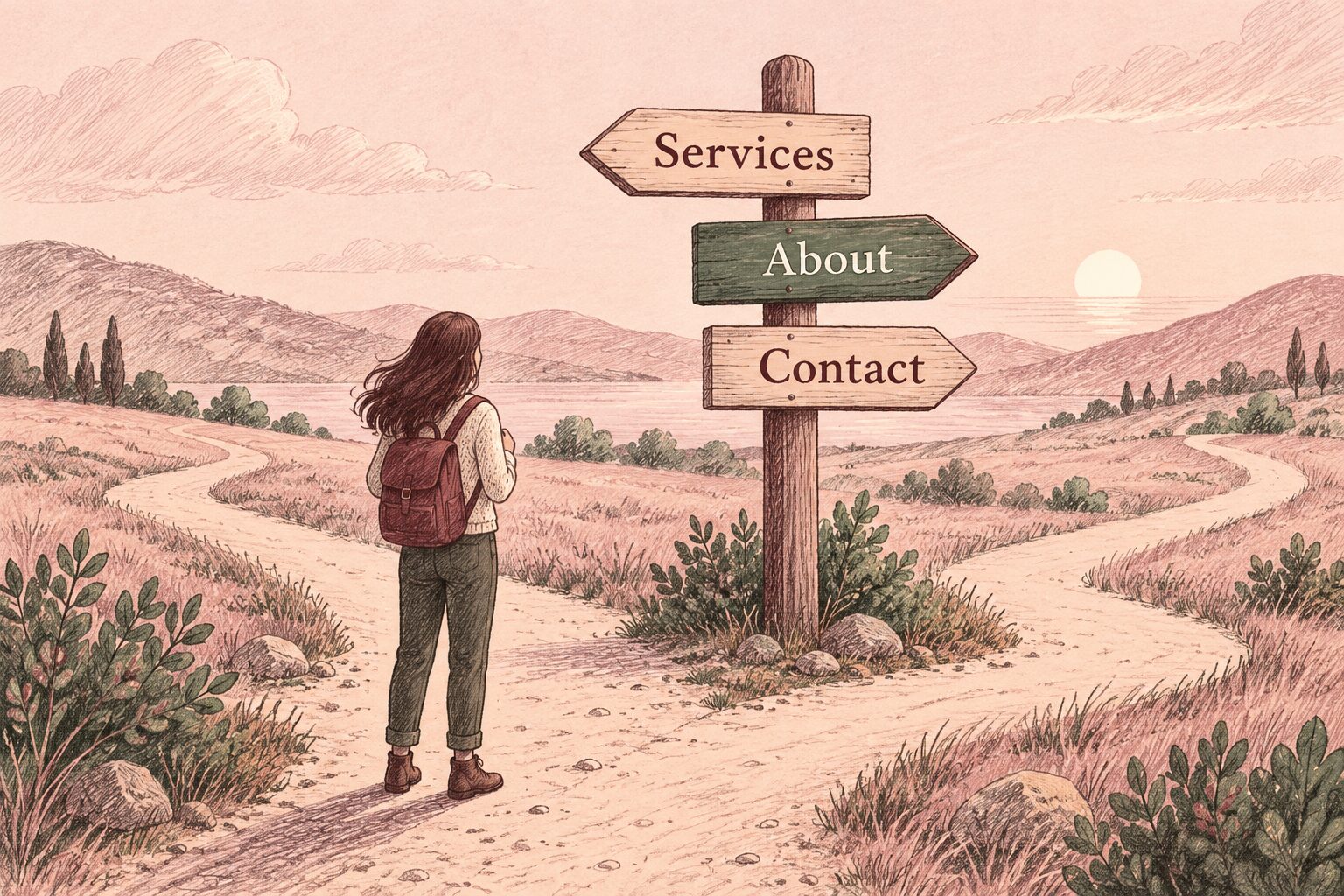
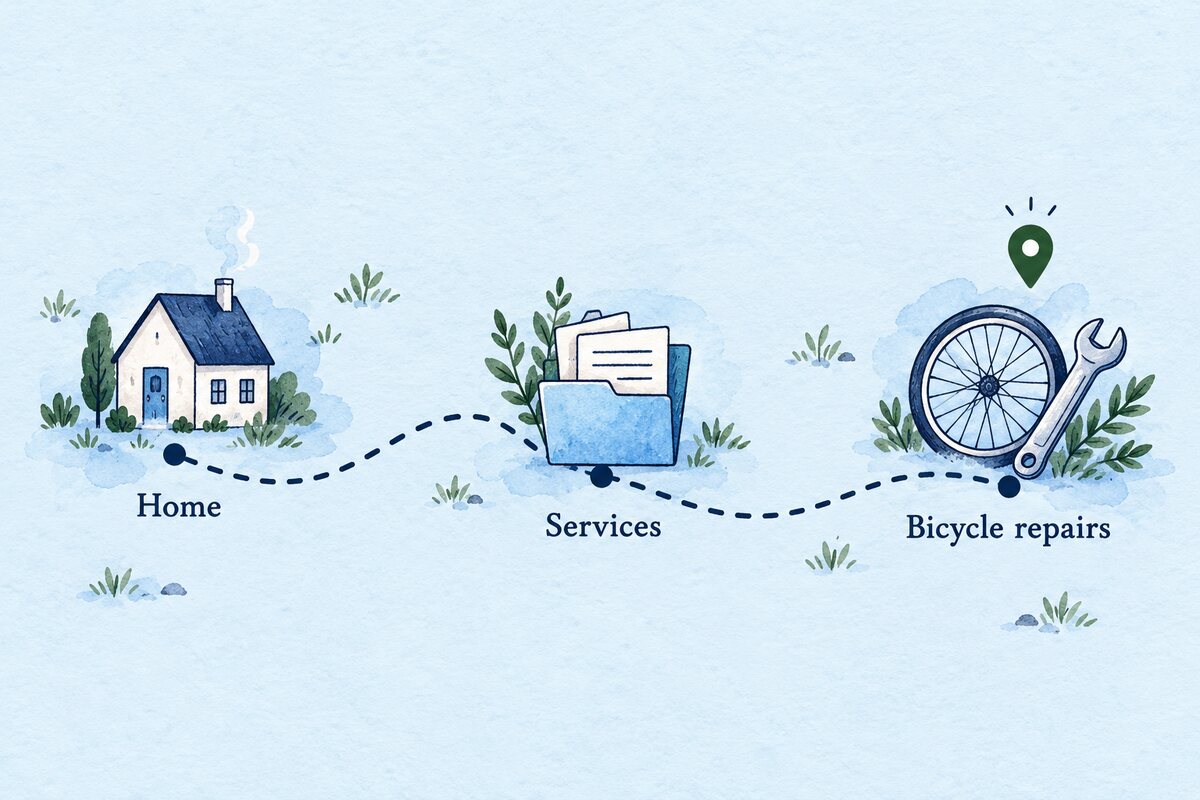
Your website menu is a set of signposts. A visitor should be able to look at it and make a sensible choice about where to go next. If the labels only make sense to people inside your business, useful pages can be hard to find even when the pages themselves are clear.
This practical check focuses on menu labels, grouping and destinations. Set aside a short session, open your website on a computer and a phone, and keep a list of changes to review before you edit.
Start with three things a customer wants to do
Write down three realistic reasons for visiting your site. For a fictional garden maintenance business, these might be checking whether hedge trimming is offered, finding the area covered and asking about a visit. Use the tasks your own customers bring to you.
Start on the homepage and try each task using the menu. Record the label you choose, the page you reach and anything you still need to find. Then begin on a service page, as someone arriving from a shared link might do. Can you still reach the other important information?
This gives you specific problems to fix. “The coverage area is only in an old blog post” is more useful than “the menu needs work”.
Choose words customers can recognise
Read each label without looking at the destination page. Can you explain what you expect to find there? A heading such as “Our world” might suit a campaign, but “About” is a clearer starting point when someone wants to know who runs the business.
For the fictional gardening business, “Garden services”, “Areas covered” and “Contact” could be useful labels. They are examples, not a required menu for every business. A shop and an appointment-based service will need different routes.
- Replace internal department names with words customers use.
- Keep labels concise without making them vague.
- Use one label consistently for the same destination.
- Check that the destination page delivers what the label suggests.
Changing a menu label does not require changing the page address. Treat an address change as a separate job, with its own checks for existing links.
Group pages around useful choices
Write the current menu items on a sheet of paper. Put related services together and mark which pages help with your three customer tasks. This can reveal a menu that has grown one item at a time without a clear structure.
There is no menu length prescribed by this exercise. Aim for choices that have a clear purpose. If you have several services, an overview page can explain the range and link to the details. Check that customers can reach those details from the overview as well as any drop-down menu.
Avoid removing a useful route just to make the menu look tidy. Contact information, important service information and customer support may still need a visible place.
Compare the phone and computer menus
Open both versions and follow the same tasks. The presentation can change, but the meaning should stay familiar. W3C’s menu structure guidance recommends consistent wording, destinations and ordering for menu items shown across screen sizes.
Check that the phone menu opens and closes, that submenus can be reached by tapping, and that labels are not cut off. Follow each important link rather than only checking how the menu looks. For a separate check of keyboard operation, use our guide to using your website without a mouse.
Give visitors a way to understand where they are
A clear page heading should confirm the destination. On a larger site, a breadcrumb trail can also show how the current page fits into the wider structure. W3C’s guidance on alternative navigation routes explains how breadcrumbs, a site map and search can help people find content.
Choose extra routes only where they are useful and can be maintained. A small site may need better links between related pages before it needs a new search feature.
Test the revised choices with someone else
Ask someone who does not manage the site to try the three tasks. Let them choose without hints. Note where they hesitate or arrive somewhere unexpected; avoid treating one person’s experience as a complete assessment.
Make a small, recorded change and repeat the check. After editing, verify the live menu on a phone and a computer, including any separate footer menu. Keep a note of the original labels so you can review the change if it causes confusion.
Want to discuss a menu that customers struggle to use? Contact Hobbit Web Design with your website address and one example of a page that is difficult to find.