Does your website menu help customers find the right page?
October 12, 2026
Is your website footer still useful? A practical check
October 17, 2026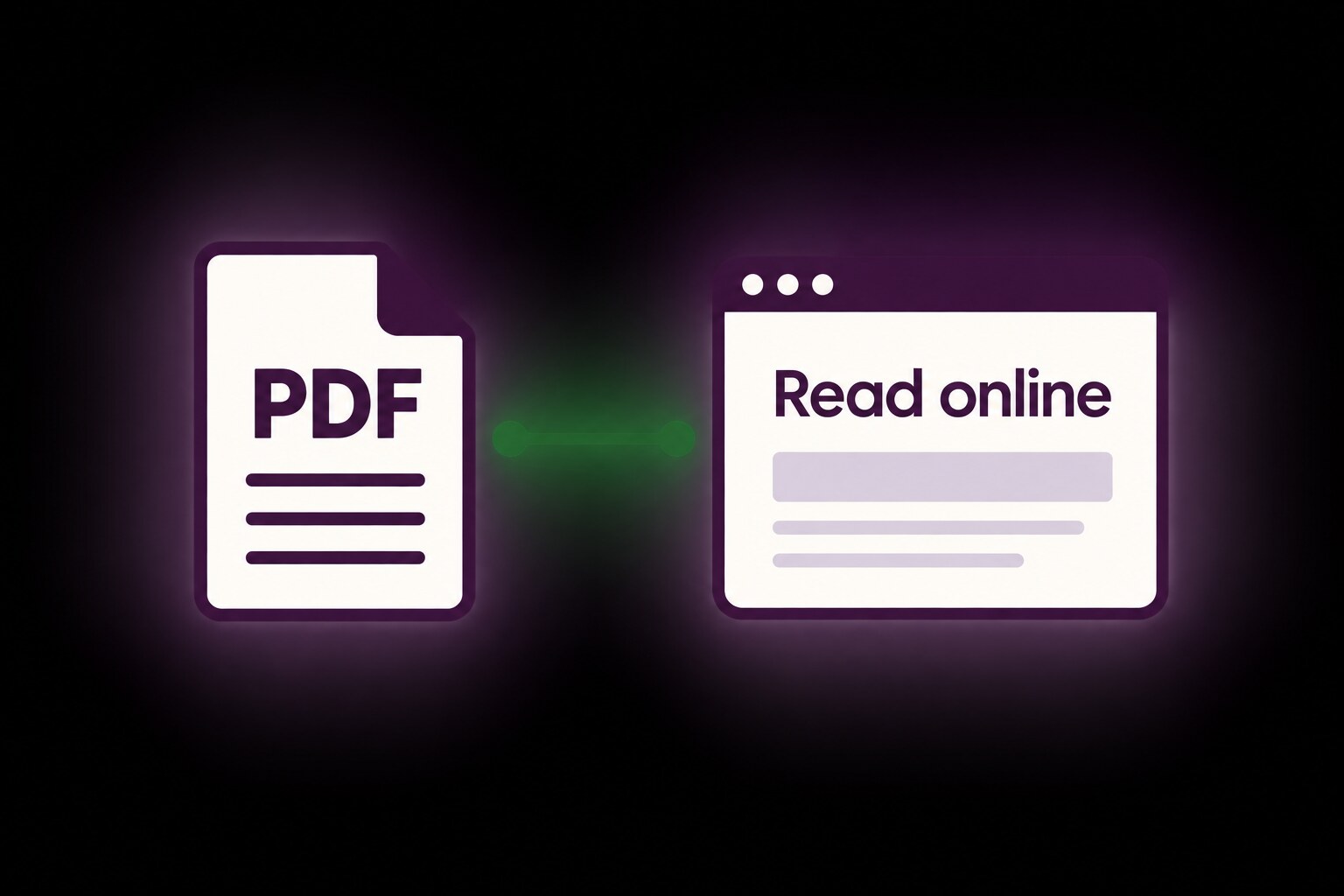
A price list, brochure or booking guide can be useful to download. But customers should be able to find the right file, understand what it contains and read the information without a struggle. Start with one important download and follow its journey from the link on your website to the last page of the document.
1. Decide what belongs on the web page
Ask what the visitor needs at that moment. If they want your opening hours, a short service description or the steps for making an enquiry, put that information directly on the page. A printable copy can sit alongside it.
GOV.UK’s guidance on accessible documents recommends HTML wherever possible because it supports users’ browser settings. Although written for government publishing, this is a useful design principle for a small-business website too.
For example, a fictional gardening business could show its service areas and enquiry process on its website, then offer a separate printable preparation checklist. The visitor can understand the service before deciding whether to download anything.
2. Give the download a useful label
Make the link name describe the document. “Download our garden visit checklist (PDF, 240 KB)” is more informative than “Click here”. That file size is an example: use the size of your actual file.
Put a short explanation beside the link if customers need context. Say who the document is for, what it covers and whether they need to complete or print it. Do not describe a brochure as a booking form if it cannot be used to book.
Use a recognisable filename, such as garden-visit-checklist.pdf. Avoid internal filenames such as final-v7-new.pdf. Check the name of the downloaded file as well as the link visitors see.
3. Check the document itself
Open the file from your public website, rather than from the copy on your computer. Confirm that the business name, contact details, prices and dates are current. If the file describes an offer, make sure its terms match the web page.
Try selecting a sentence and searching for a word in the document. A scanned picture of text may need optical character recognition, often called OCR, to create usable text. W3C’s PDF guidance on OCR also explains the need to check the resulting text and reading order. Selectable text alone does not prove that a PDF is accessible.
Run the accessibility checker in the software used to create the document. Review its findings, then inspect the exported PDF too. For a document that customers depend on, ask the person maintaining it to check its structure and reading order as part of the review.
4. Try the whole journey on a phone
Start on the page where a customer would find the link. Open the download and check whether you can read it comfortably. Note any repeated zooming, sideways scrolling or difficulty returning to the website.
If a small piece of essential information is buried in a large brochure, bring that information onto the web page. Keep a clear route to contact you if someone cannot use the file.
Then test every link inside the document. An old website address can remain in a PDF long after the main site has been updated. Our guide to finding and fixing broken links gives you a simple way to record problems and check repairs.
5. Give each download an owner
Keep a small record of the document, the page that links to it, the person who checks it and its next review date. Review seasonal material before the next season starts, and check price lists whenever prices change.
After replacing a file, repeat the public download test. Check that the web page and document agree. Keep any old version you need for your own records separate from the current customer-facing copy.
A useful first job
Choose your most important download today. Check its label, contents, phone experience and contact route. Write down any faults and assign each one to a person. This small check is a starting point, not a full accessibility audit.
Want to discuss the downloads on your website? Contact Hobbit Web Design and tell us which page or document you want to improve.