Happy Halloween from Host Hobbit: the AI monsters at your digital door
October 21, 2026
Can customers read your website tables on a phone?
October 22, 2026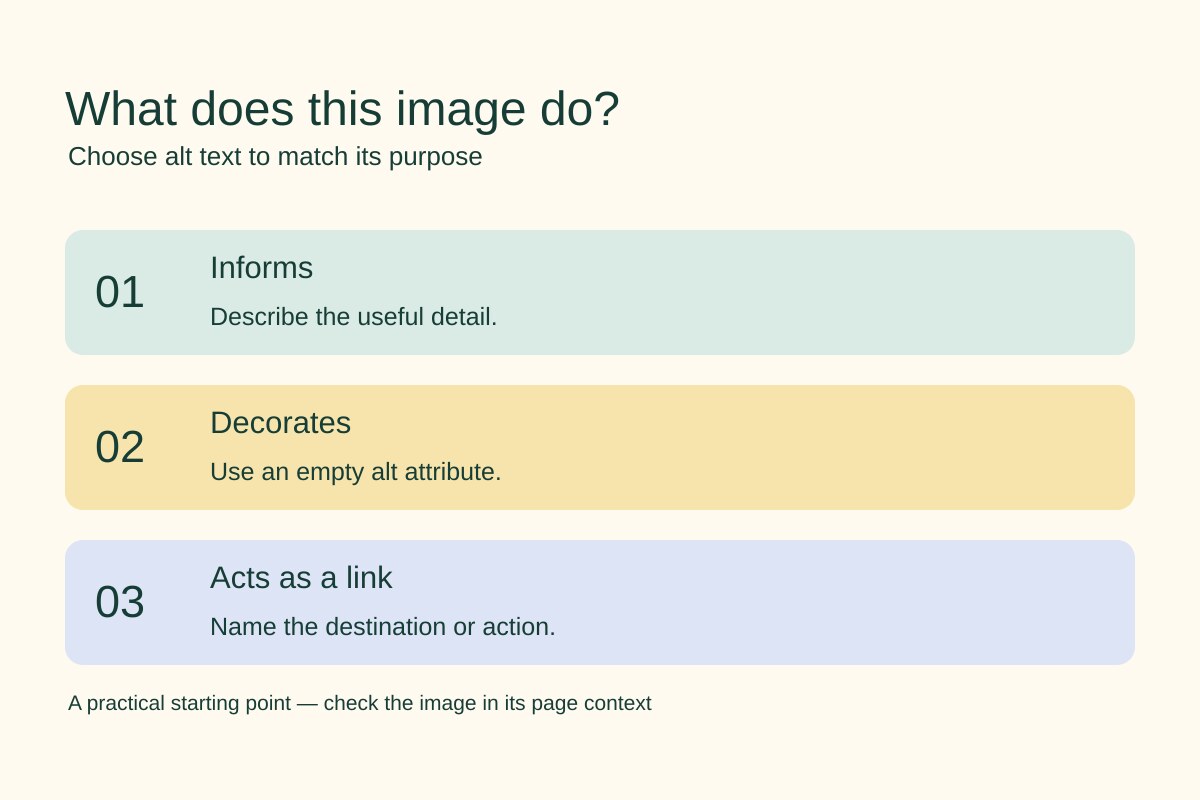
A photo can show a customer something your page copy does not: the shape of a product, the entrance to your premises or the result of a repair. Alt text gives that useful information a text alternative. Start with the job the image does on the page, then choose the words.
You do not need to describe every object in every picture. This short review helps you decide which details matter, which images need no description and which images act as links.
1. Pick one page and list its images
Start with a service or product page that customers use before contacting you. For each image, note why it is there. Is it explaining something, adding decoration or helping someone move to another page? Look at the surrounding heading, caption and link as well as the picture.
For example, a photograph of a shop entrance might explain where to arrive. The same photograph in a decorative banner beside full written directions may add no extra information. Context changes the right treatment.
2. Describe information that helps the customer
For informative images, write a short description of the meaning that matters. W3C’s guidance on informative images explains this purpose-based approach.
Imagine a furniture maker showing a table with folded leaves. “Table photo” says little. “Oak table with both side leaves folded down” explains the feature shown. If the page is about a scratch repair, describe the repaired surface instead. These are example descriptions, not claims about a particular business.
Read your proposed text beside the page copy. Remove details that do not help someone understand this image’s role. Do not add a string of search phrases or describe features you cannot verify in the photograph.
3. Keep purely decorative images quiet
A decorative flourish does not need a spoken description. For a decorative HTML image, W3C recommends an empty alt attribute, written as alt="". That is different from omitting the attribute: some screen readers may announce a filename when it is missing. See the decorative image guidance.
A blank box in your editor is not proof that the page produces this result. Check the output or ask the person who maintains your website to confirm it. Avoid typing “decorative image” into the field; those words would become unnecessary content.
4. Name the action for an image link
If an image is the only content of a link, the text alternative should explain its destination or action. A picture of a brochure cover used as a download link could say “Download the garden design brochure”, rather than just describing its colours.
When the same link already contains clear visible text, repeating it in the image description may be unnecessary. Review the complete link. W3C’s functional image guidance includes examples of both situations.
5. Check the page after saving
- Open the saved page and confirm the intended image is still shown.
- Check each image in context, including its caption and any surrounding link.
- Confirm meaningful descriptions appear in the rendered alt attributes.
- Confirm decorative images use the intended empty alternative.
- Test image links and check that their purpose is clear.
Keep a short record of the page, the change and who checked it. This is a focused content check, not a full accessibility audit. Charts and complex diagrams can need a fuller written explanation; use the W3C images tutorial for those cases.
If you are also replacing large image files, read our guide to preparing photos for your small-business website. For help discussing the next changes to your site, contact Hobbit Web Design and include the page you want to improve.